


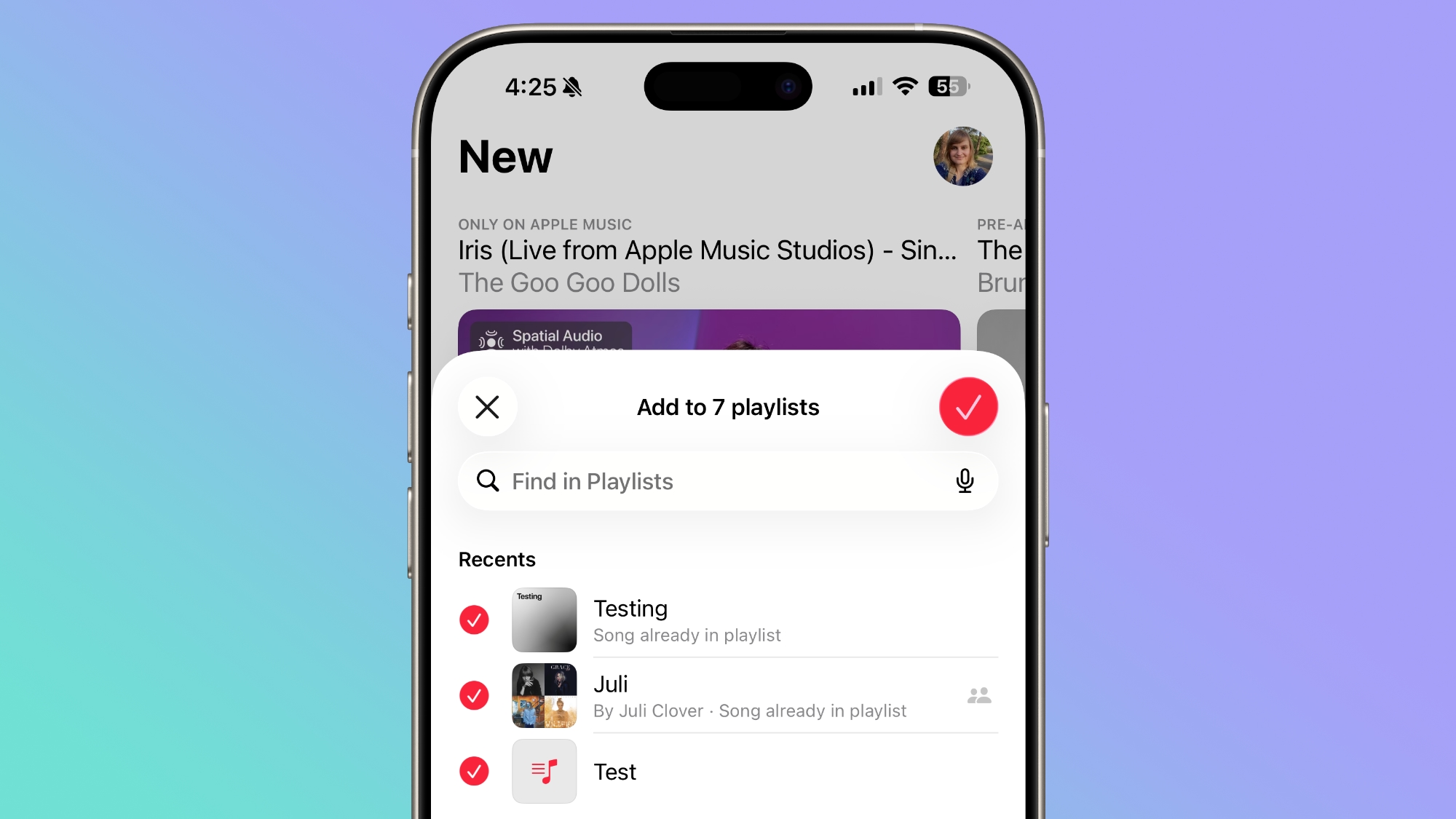
Previously, tapping Add to Playlist would take you to a list of your playlists, and you could only pick one at a time. In iOS 26.4, there's a new multi-select option that lets you check off as many playlists as you like in one go. Here's how it works.
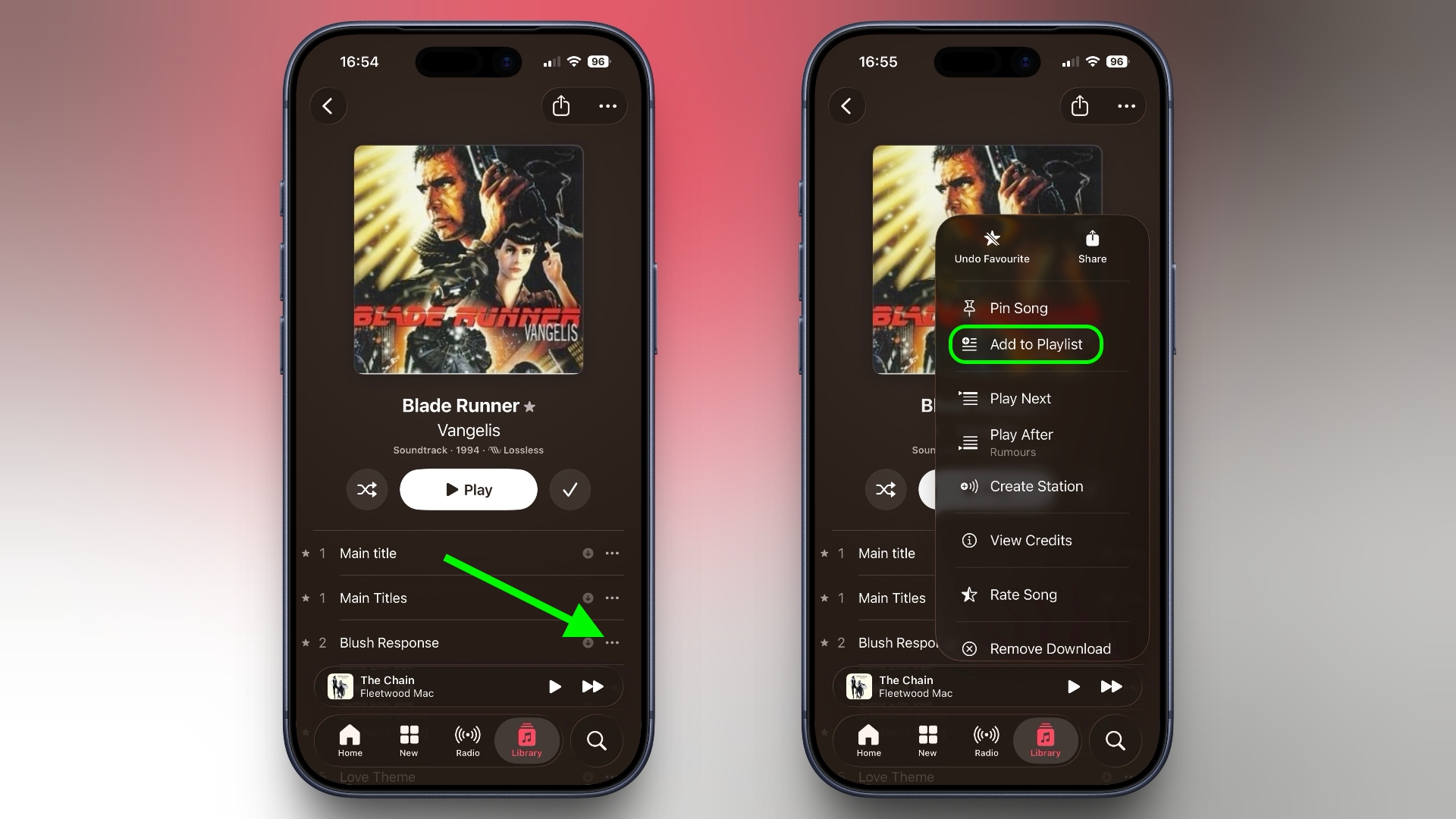
- In the Music app, find the song you want to add.
- Long press the song, or tap the three-dot menu (...) next to it.
- Tap Add to Playlist.
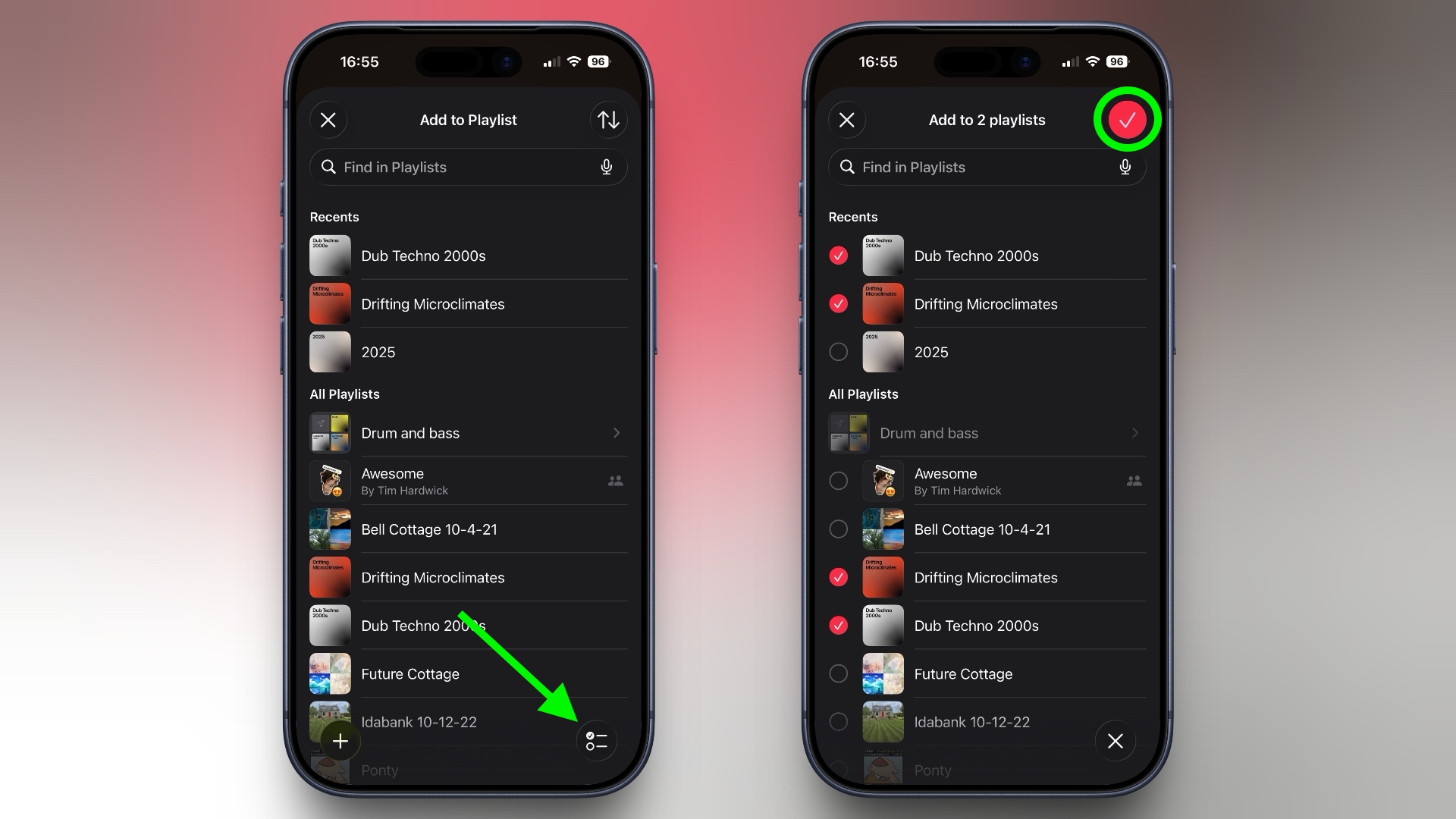
- In the bottom-right corner, tap the new multi-select button.
- Select all the playlists you want to add the song to – each one gets a red checkmark.
- Tap the checkmark button in the top-right corner to confirm.
It might seem like a minor addition, but if you maintain several playlists organized by mood, genre, or occasion, it eliminates so much back-and-forth navigation. It's no exaggeration to say that some users will have been waiting years for this option.
In iOS 26.4, Apple has also given albums and playlists a new fullscreen design so that the album artwork colors style the entire background of the track list and other UI elements to give each album a more immersive, authentic look. To check out what's new, make sure your iPhone is up-to-date with the latest version by going to Settings ➝ General ➝ Software Update.
Tag: Apple Music
Related Forum: iOS 26
This article, "This Music Selection Tweak in iOS 26.4 Will Save You Bags of Time" first appeared on MacRumors.com
Discuss this article in our forums
0 comments:
Post a Comment