

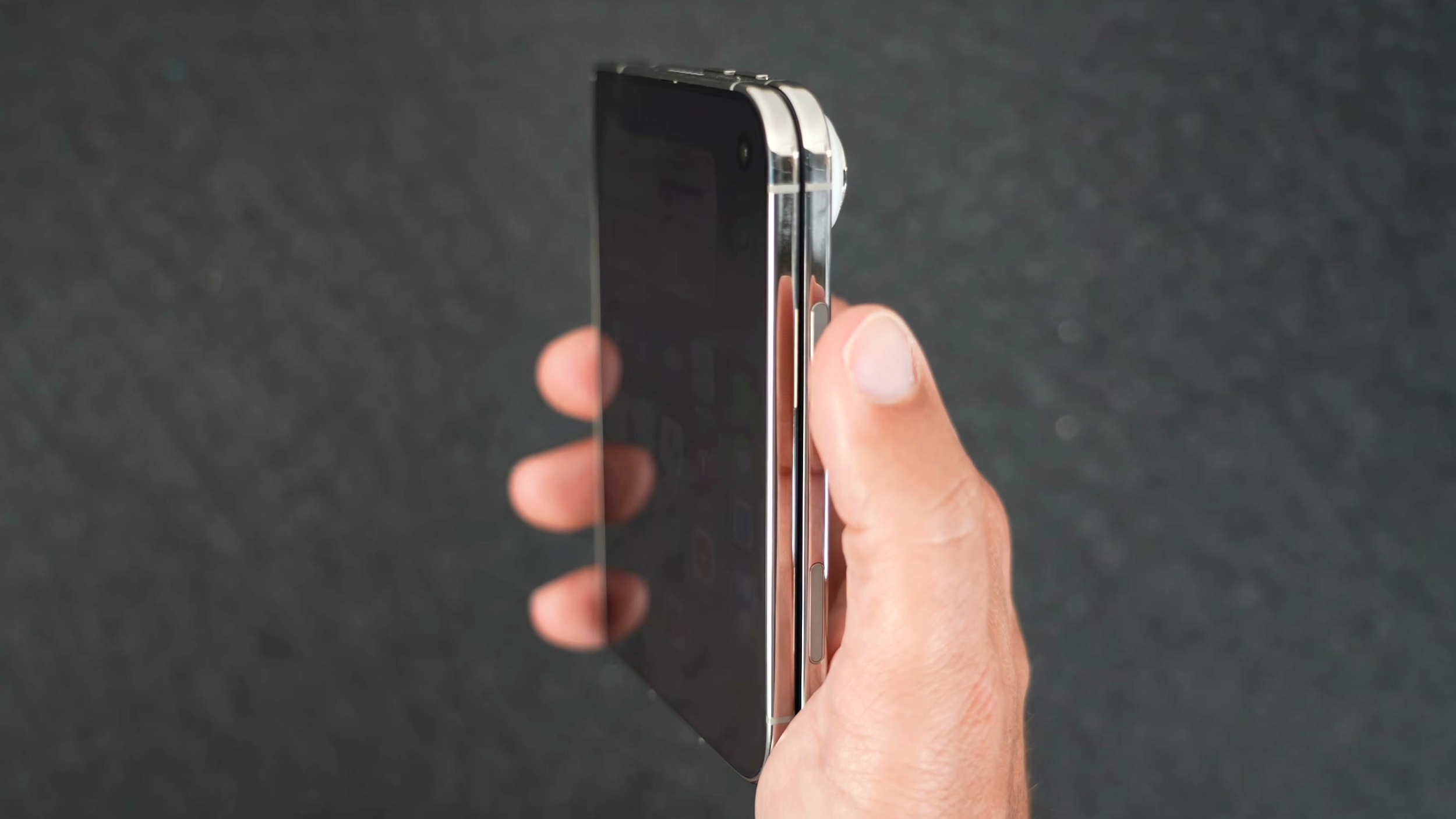
The feature is called Unlock with Apple Watch. It's not new to iPhone, but it works reliably. Note that your Apple Watch needs to be a Series 9 or later, an Ultra 2 or later, or an SE 3. Here's how to turn on the feature and start using it.
Turn On Unlock With Apple Watch
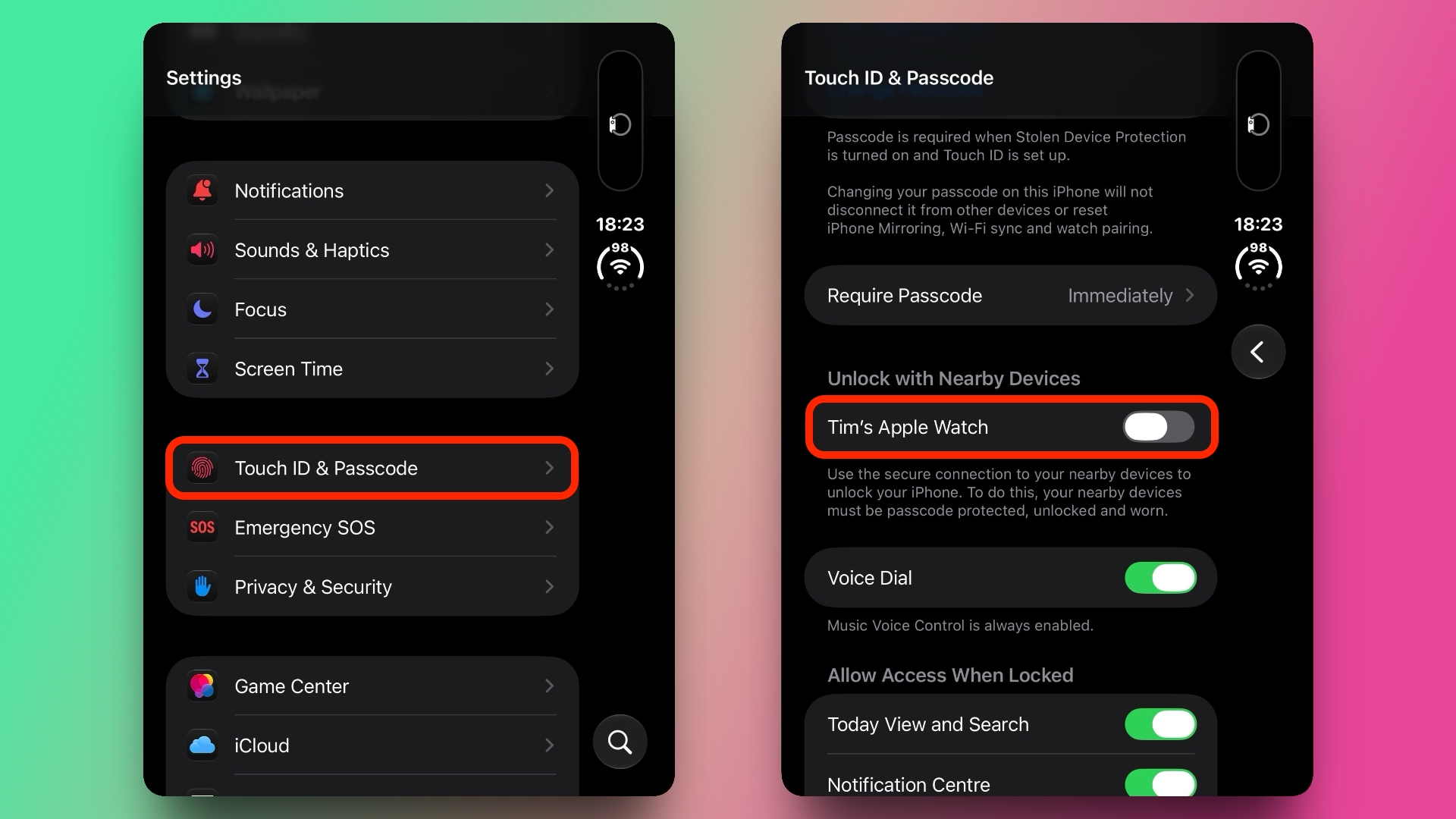
- Open the Settings app on your iPhone Duo.
- Tap Touch ID & Passcode, then enter your passcode.
- Scroll down to "Unlock with Nearby Devices."
- Toggle on the switch next to your Apple Watch. If you have more than one watch paired with your iPhone Duo, toggle it on for each one.
Unlock iPhone Duo With Your Watch
- Make sure your Apple Watch is on your wrist and unlocked, and close to your iPhone Duo.
- Wake iPhone Duo by raising it or tapping the screen. (If it's closed, opening it also wakes it.)
- Swipe up from the bottom edge of the screen to dismiss the Lock Screen.
Related Roundups: Apple Watch 12, iPhone Duo
Buyer's Guide: Apple Watch (Buy Now), iPhone Duo (Buy Now)
Related Forums: Apple Watch, iPhone
This article, "Skip the Touch ID Scan: Unlock iPhone Duo With Apple Watch" first appeared on MacRumors.com
Discuss this article in our forums

0 comments:
Post a Comment